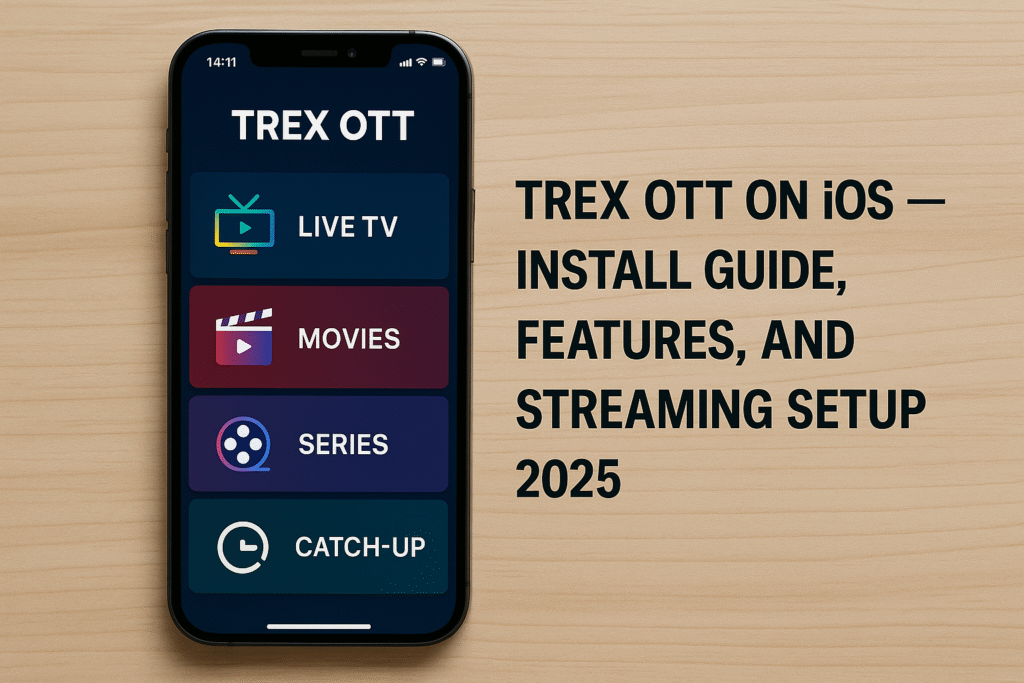
Trex OTT on iOS turns your iPhone or iPad into a full IPTV hub. You can stream live TV, movies, and series through a clean interface, organize channels with EPG, cast to your TV with AirPlay, and tune performance for smooth HD/4K playback. This in-depth 2025 guide walks you through requirements, installation paths (App Store, third-party players, and Safari/web), setup steps, safe-streaming practices, optimization, and troubleshooting—so you get a stable, enjoyable experience without guesswork. Trex OTT promotes a very large catalog and EPG/catch-up features that appeal to cord-cutters seeking a single place for live and on-demand viewing.
1) What Is Trex OTT and How It Works on iOS
Trex OTT is an IPTV/OTT service: TV delivered over the internet rather than cable or satellite. On iPhone or iPad, you run an app (official, when available, or a compatible IPTV player). The app connects to Trex’s servers and plays live channels or VOD via your network. You browse categories, open the EPG to see what’s on, and tap to start streaming—very similar to other streaming apps. Trex highlights an extensive live lineup, a large VOD library, and guide/catch-up to provide a cable-like feel on mobile.
Why cord-cutters like it
- A single interface for live channels and on-demand titles
- EPG for planning and quick channel discovery
- Works on many devices, so you can start on iPhone and continue elsewhere
2) Compatibility Requirements for Trex OTT on iOS
Most modern iPhones and iPads work well. Use this checklist before you start:
| Requirement | Practical guidance |
| Device & iOS | iOS 12+ works in many players; iOS 16–17 is ideal for performance and app support. Keep your device updated for best compatibility. |
| Chipset & decoding | A-series chips handle H.264 and H.265 (HEVC) in hardware; this helps with 1080p/4K streams. |
| Storage | Keep ≥500 MB free so apps can cache logos, EPG, and buffers smoothly. |
| Internet speed | Aim for ~10 Mbps for HD and ~25 Mbps for 4K, sustained—not just peak speed. |
| Wi-Fi | Prefer 5 GHz for lower interference and higher throughput; 2.4 GHz travels further but can be congested. |
If your iPhone/iPad is from the last 5–6 years and your Wi-Fi is stable, you’re set for Trex OTT on iOS. Network consistency matters as much as raw speed.
3) How to Install Trex OTT on iOS
You have three reliable paths. Pick the one that suits your setup today.
A) Install via the App Store (if available)
- Open App Store → search “Trex OTT” or “T-Rex Xtream.”
- Confirm the legitimate listing (historically associated with DATAPACKET MAROC) and install.
- Launch the app and log in with your Trex OTT credentials: username, password, and (if requested) the portal/server URL.
- Let the app pull channels, VOD, and EPG.
Note: Availability can change—apps may be updated, rebranded, or temporarily removed. If you don’t see an official app or it’s not functioning, use a third-party IPTV player below.
B) Install via a Third-Party IPTV Player (recommended fallback)
These players are well-known on iOS and work with Trex’s M3U playlists or Xtream Codes API logins:
- IPTV Smarters Player (Lite) — friendly UI, EPG, parental control
- GSE Smart IPTV — Xtream login, M3U, EPG, casting options
- XCIPTV Player — modern layout for live/VOD
- IPTVX — premium Apple-native design (paid)
- VLC for Mobile — basic, good for testing single URLs
Open your chosen app and add your Trex account:
- M3U method: “Add Playlist / URL” → paste your M3U link
- Xtream API method: enter portal URL, username, password → save
Trex (and resellers) commonly note compatibility with these players, so you can use whichever interface you prefer.
C) Use Safari or a Web Portal
If you prefer not to install an app, log in via Safari on iOS if Trex’s web portal supports playback. Check your welcome email or customer area for the portal URL, then sign in and try Live TV or Movies in the browser. Not all portals enable in-browser playback, so treat this as a convenient option when available.
4) Set Up the Player on iOS (Credentials, EPG, Safety)
A) Add your playlist or API login
You’ll get one or both from Trex after you subscribe:
- M3U playlist (often labeled m3u_plus):
http://YOUR-SERVER:PORT/get.php?username=XXXX&password=YYYY&type=m3u_plus&output=ts - EPG (XMLTV) link:
http://YOUR-SERVER:PORT/xmltv.php?username=XXXX&password=YYYY - Xtream Codes API:
- Server/Portal URL: http://YOUR-SERVER:PORT/
- Username / Password
Paste carefully, including the protocol (http:// or https://) and port. Typos in URLs are the #1 cause of failed imports.
B) Organize channels and enable EPG
- Favorites: mark your go-to channels to avoid hunting through long lists.
- Hide categories you never watch (many players let you toggle visibility).
· EPG:
- Using Xtream? EPG often auto-loads.
- Using M3U? Add the EPG (XMLTV) URL in player settings to populate a 7-day guide.
- Time zone: if the guide looks shifted, adjust the EPG offset in app settings.
- Parental control: set a PIN to lock adult or unwanted categories on shared devices.
5) Streaming Features on iPhone and iPad
A) HD/4K playback that adapts to your connection
Trex markets high-quality streams (HD, FHD, 4K; some catalogs may include higher options). On iOS, hardware decoding helps keep playback smooth, especially with HEVC 4K. If your network dips, choose an HD channel or a lower-bitrate link for stability. Many players can switch sources or adapt quality to your bandwidth.
Tips
- For mobile data, stick to HD to balance quality and data use.
- On Wi-Fi, test a 4K channel and see if it stays stable; if not, drop back to FHD.
B) VOD and series on demand
The on-demand side is a major draw: browse by genre, search titles, and resume where you left off. Many titles include subtitles or multiple audio tracks, depending on the feed. Players often keep a Continue Watching list so you can pick up later on your iPhone or iPad. Providers highlight very large libraries and frequent updates to VOD and series categories.
C) AirPlay and other casting
- AirPlay: While a video is playing, tap the AirPlay icon and choose your Apple TV / AirPlay-capable TV to watch on the big screen.
- Chromecast/DLNA: Some iOS players (e.g., GSE) include casting to Chromecast-enabled displays. Support varies by app.
- Picture-in-Picture (PiP): Many apps support PiP on iOS/iPadOS so you can multitask while a channel or movie continues in a small window.
6) Safe Streaming and Legal Tips
The legal status of IPTV varies by region. Treat your access responsibly. Use these practical habits on iOS:
- Use a reputable VPN to add privacy on public and home networks and reduce the chance of ISP throttling. A VPN doesn’t make unlicensed content legal, but it obscures traffic patterns and adds a layer of protection. Choose a fast provider for HD/4K.
- Avoid unofficial APKs/configs; stick to App Store apps or known players to reduce risk.
- Keep credentials private and use a strong password on any web panel.
- Enable parental controls inside your player so kids don’t see adult content.
- Update iOS and apps for the latest security and playback fixes.
Stay informed about local rules that apply to IPTV and use services in line with your risk tolerance. This guide is informational, not legal advice.
7) Optimize Performance on iOS (Buffer, Decoder, Network)
A) Tuning player settings
In many players you can change buffer length and decoder/player:
- Buffer length: 5–10 seconds smooths brief drops in bandwidth but adds a small start delay. Increase if you see micro-stutters.
- Decoder: Toggle hardware/software decoding if you notice audio-video sync drift or stutter. AVPlayer (native) is efficient; some streams work better with an alternate/internal player.
- Per-section player: Some apps let you choose a different player for Live vs VOD. If one stutters, try the alternative for that section.
- Restart & clear cache: Force-quit and reopen your app after long sessions; it refreshes buffers and memory.
These small tweaks can eliminate common playback nuisances in IPTV apps.
B) Strengthen your Wi-Fi and internet
- Prefer 5 GHz Wi-Fi near the router; switch to 2.4 GHz only if distance/interference demands it.
- Test speeds on the device with fast.com or Speedtest; look for consistent numbers (≥10 Mbps HD, ≥25 Mbps 4K).
- Reduce congestion: Pause big downloads or game updates while streaming; enable QoS on your router if available.
- Router placement: Keep it elevated and central; avoid metal cabinets and neighboring interference.
- Upgrade aging gear: An 802.11ac/ax router and a modern ISP plan help multiple streams.
If you cast to Apple TV, wiring the Apple TV via Ethernet can stabilize big-screen playback even when your phone is on Wi-Fi.
8) Troubleshooting on iOS (Fast Wins First)
Use this short, practical playbook:
If channels or VOD won’t load
- Verify internet (open a webpage).
- Re-check your M3U/API details for typos.
- In the app, Refresh/Reload playlist and EPG.
- Try a different player (e.g., Smarters → GSE or VLC).
- Reboot iPhone/iPad.
- Contact your provider.
If buffering or stutter appears
- Increase buffer to ~5–10 s in player settings.
- Move closer to router or switch to 5 GHz.
- Check fast.com; if borderline, downshift to HD channels.
If audio/video is out of sync
- Switch decoder/player (hardware ↔ software) for the affected section.
- Stop and resume the stream; some feeds resync after a fresh start.
If EPG is empty or wrong time
- Re-add EPG URL (XMLTV) and let it download fully.
- Adjust EPG offset to match your time zone.
If AirPlay drops
- Keep the app foregrounded during playback, or use a USB-C/Lightning-to-HDMI adapter for a wired big-screen session.
9) Why Choose Trex OTT on iOS
- Unified hub for live TV, movies, and series
- Quality and device reach: optimized for Apple hardware, with EPG and catch-up in many lineups
- Flexible app choice: official app when present, plus several popular iOS IPTV players
- Big-screen friendly with AirPlay; strong on-the-go experience on iPhone/iPad
- Actionable setup path with clear credentials (M3U or Xtream) and stable performance tuning
Practical Setup Summary (Copy-friendly)
- Pick your player: App Store → IPTV Smarters Lite or GSE Smart IPTV.
- Add Trex: Paste M3U or enter Xtream URL + user + pass.
- Load EPG: Add XMLTV link if not auto-loaded.
- Organize: Favorites + hide unused categories; set PIN for parental control.
- Optimize: 5–10 s buffer; switch decoder if needed; use 5 GHz Wi-Fi.
- Cast: AirPlay to Apple TV for a living-room feel; PiP for multitasking.
- Stay safe: Use a VPN for privacy; keep apps/iOS updated.
Conclusion
With Trex OTT on iOS, your iPhone or iPad becomes a powerful streaming center for live TV and on-demand viewing. You’ve got clear paths to install an app, add your playlist or API login, organize channels with EPG, cast to your TV, and tune performance for smooth HD/4K playback. Follow the optimization and troubleshooting steps above for a reliable, low-friction experience—then enjoy the depth of live channels and VOD wherever you go. For Apple users who want a single, flexible IPTV solution, Trex OTT on iOS delivers a capable setup, provided your network is stable and you stream responsibly.